Tag Archives: cyfin

How to Properly Configure Windows Server 2012 and Windows Server 2008 R2

Configuring Windows Server 2012 and 2008 R2 to push out a group policy to all users can be challenging with Microsoft’s introduction of Group Policy Preferences. These preferences provide more than 20 Group Policy extensions that increase the number of configurable settings in a Group Policy object (GPO). Within most preference items, the configuration interface looks similar to the applicable user interface for configuring settings so the layout will be familiar. The guidelines to set up users’ browsers with a proxy configuration are alike for Internet Explorer 7, 8, 9, and 10, and the following instructions are for Internet Explorer 10.

  1. Go to Group Policy Management, and select the GPO to which you want to add the Internet Explorer 10 settings.
  2. Edit the GPO.
  3. In the Group Policy Management Editor, go to User Configuration, Preferences, Control Panel Settings, and then Internet Settings. If you have already created settings for Internet Explorer 7, 8, and 9, they will be displayed here.
  4. Right-click in the right-hand pane, select “New,” and then select “Internet Explorer 10.”
  5. In the New Internet Explorer 10 Properties dialog box, click the Connections tab, and then click LAN Settings.
  6. Under Proxy server, select the check box to enable the “Use a proxy server…” option.
  7. In the Address field, enter the IP address of your proxy server, and in the Port field, enter the port number.
  8. Now you need to enable the settings and apply them to all users. You can individually enable and disable underlined settings or settings preceded by a circle within a preference item. The underlining or circle of the setting indicates whether it is currently enabled or disabled.
    • A setting with a solid green underline or a green circle is enabled. The preference extension applies this setting’s value to the user or computer.
    • A setting with a dashed red underline or red circle with a slash is disabled. The preference extension does not apply this setting’s value to the user or computer.
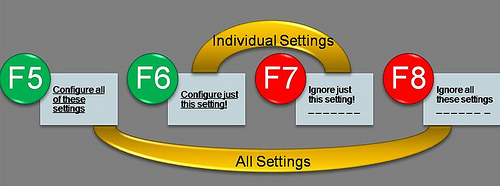
  9. Press the following function keys to enable or disable the settings within a preference item. To select a setting, click the actual text of the setting or its text field.

      • F5 – Enable all settings on the current tab.
      • F6 – Enable the currently selected setting.
      • F7 – Disable the currently selected setting.
      • F8 – Disable all settings on the current tab.

    The following diagram illustrates how the function keys work.
  10. After enabling the settings, select the check box to enable the “Bypass proxy server…” option.
  11. Click OK, Apply, and then OK to save the changes. You will see the Internet Settings entry for Internet Explorer 10 along with Internet Explorer 7, 8, and 9, if they were previously created.

For additional assistance, please contact Technical Support at (321) 953-5351, Ext. 4 or support@wavecrest.net.

Sources:

https://blogs.technet.com/b/grouppolicy/archive/2008/10/13/red-green-gp-preferences-doesn-t-work-even-though-the-policy-applied-and-after-gpupdate-force.aspx

https://technet.microsoft.com/en-us/library/cc754299.aspx

Enhanced Malware Protection

Wavecrest Computing is pleased to announce an enhancement that delivers a tenfold increase in CyBlock’s ability to protect computer networks from malware and Cyfin’s ability to identify increasing security threats. Here is some background information.

Malware is the scourge of the Internet. The term “malware” includes computer viruses, worms, Trojan horses, spyware, adware, and other malicious programs that can disrupt computer operations, gather sensitive information, or gain access to private computer systems. For Wavecrest’s purposes, malware also includes Web sites that support hacking. Most malware originates and is spread from particular Web sites. Unfortunately, many thousands of such sites exist today, and to make matters worse, the number is growing steadily every day at distressingly fast rates.

The malware problem is not new to Wavecrest. For a number of years, companies have been using CyBlock and Cyfin products to protect against and identify automated invasions of malicious scripts and software, and unauthorized access to their internal networks–the two major problems caused by malware. CyBlock provided protection–under customer control–by blocking and reporting on employees’ attempts to visit sites in 3 of more than 70 URL List categories: Hacking, Phishing/Fraud, and Spyware/Malicious.

While this methodology was effective, it was not perfect. The difficulty lay in keeping the URL List up to date in the face of the relentless and rapid increase in the number of malware-spreading sites. This issue has been addressed with an enhancement that significantly improves the ability to keep the list current.

At the same time, three related categories, Hacking, Phishing/Fraud, and Spyware/Malicious, have been consolidated into one called Malware. This consolidation increases the ease of administration for customers.

This enhancement with its improved URL List is included in the latest release of CyBlock v.6.8.0 and Cyfin v.8.8.0. To realize its benefits as soon as possible, it is recommended that you upgrade your CyBlock or Cyfin product as soon as you can. Wavecrest will continue to update the enhanced list daily and make it available for download by customers. The download process remains unchanged.

You can schedule the list to be downloaded automatically every day, or you can download it manually at any time. In any case, as soon as it is downloaded, you will immediately begin to receive the added protection and see a significant reduction in the number of security threats to which you may be exposed.

To download the latest release, go to the Administration – Product Update screen in your CyBlock or Cyfin product. For additional assistance, please contact Technical Support at (321) 953-5351, Ext. 4 or support@wavecrest.net.

Are the URLs in Your Categories Set Correctly?

If you are upgrading your CyBlock or Cyfin product, you will be using the Wavecrest URL List 7. List 7 supports wildcard entries in domain, path, and parameter matching in URLs. In List 6, wildcard entries were possible, but limited, and thus, the URL matching was slightly different. Therefore, we recommend that you recheck and reset the URLs that were added to your standard and custom categories.

To do this, go to the Advanced Settings – Category Setup – Edit URLs screen and select the category you want to change. In the Supplemental URLs or Custom URLs box, modify your URLs according to the List 7 rules. List 7 allows you to use the following wildcard rules to add multiple URLs simultaneously.

  1. Wildcards With Domain Matching.This URL matching method categorizes Web sites whose pages all contain the same type (category) of content, e.g., Shopping, News, and Sports. In these relatively simple cases, one category applies to the entire site. Under this method, if the Web log entries are in any of the following formats, and the URL List contains a matching URL, the product will categorize the visit on the basis of the domain name.
    • www.mydomain.com
    • *.mydomain.com
    • www.mydomain.*
    • *.mydomain.*


    Note:
     For this method to work, and as reflected in the examples, the entry in the URL List must contain a complete domain name element. That is, the domain name between the periods (dots) must be complete and must not be augmented with an asterisk or any other character. For example, the list must not contain mydomain*.com or *mydomain.com.

  2. Wildcards With Domain and Path Matching.This URL matching method categorizes Web site visit-attempts at the path level. This method enables individual pages to be categorized. If the URLs visited (as documented in the Web logs) are in any of the following formats and there is a corresponding entry in the URL List, the product will categorize the visit on the basis of the domain name and path.
    • www.mydomain.com/path/*
    • www.mydomain.com/*/path/*
    • *.mydomain.com/*/path/*
    • *.mydomain.com/path/

    Notes: For this method to work, the entry in the URL List must contain a complete path element. That is, the path element between the forward slashes must be complete and must not be augmented with an asterisk or any other character. For example, the list must not contain /path*/. As indicated at the end of the fourth example above, the asterisk is not always required, i.e., an exact path can be entered. However, as indicated in all four examples, forward slashes are always required.

  3. Wildcards With Parameter Matching.This method adds parameter matching to the two methods defined above (domain alone and domain-plus-path). It focuses more on syntax found in URL parameters than on content of the site being evaluated by the product. The parameter method works as follows. If the Web log entries are in any of the formats listed below, the product will categorize the visit on the basis of (a) the domain name plus the parameter, or (b) domain name plus path and parameter. Note that the first three bullets are examples of the former (no path included).
    • www.mydomain.com/*?keyword=value
    • www.mydomain.com/?keyword=value
    • www.mydomain.com/?id=*
    • www.mydomain.com/?id=*&sr=* (example of multiple pairs)
    • *mydomain.com/*/path/*?id=*

    Notes:  Parameter matching always requires the use of “?”. If a question mark is placed at the end of the domain or the path, the URL List will perform this matching method.The “/” is also required for this method. However the “&” is optional and is only needed when more than one “keyword=value” pairing is involved (as indicated above). Note that the “&” is added between pairs, and the pairs do not have to be in any particular order.

For additional assistance, please contact Technical Support at (321) 953-5351, ext. 4 or support@wavecrest.net.